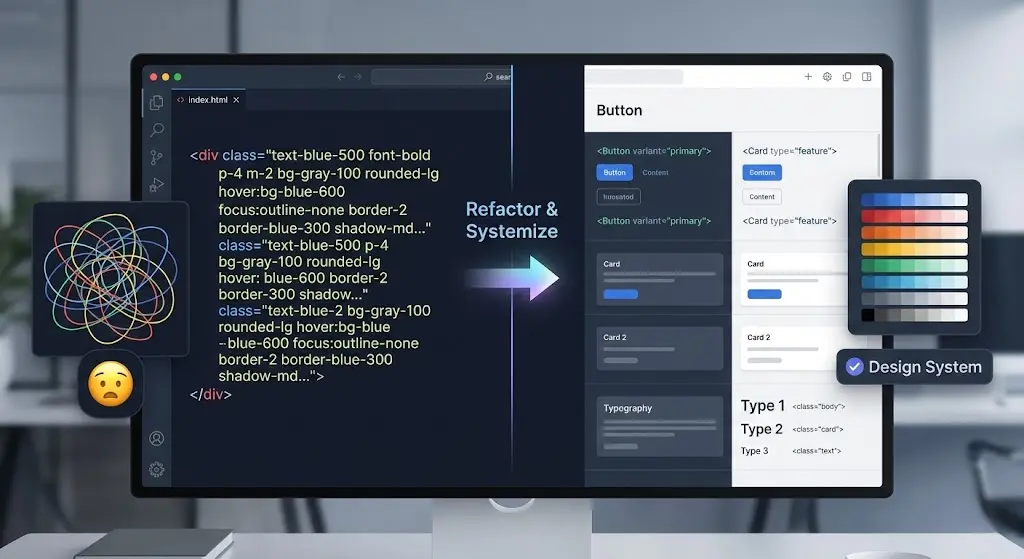
Tailwind CSS has undoubtedly won the CSS framework war of the 2020s. Its utility-first approach offers speed, flexibility, and a way to build custom designs without ever leaving your HTML. But with great power comes great responsibility—and, often, incredibly messy code.
We've all seen it: a button element drowning in a sea of 30 different utility classes.
<button
  class="bg-blue-500 hover:bg-blue-700 text-white font-bold py-2 px-4 rounded focus:outline-none focus:shadow-outline transition duration-150 ease-in-out transform hover:-translate-y-1 hover:scale-110 ..."
>
  Click me
</button>
When your entire codebase looks like this, readability suffers, and consistency becomes a challenge. How do you ensure every primary button has the exact same hover state? How do you manage complexity without retreating to BEM and CSS files?
This guide explores Tailwind CSS best practices for professional teams. We'll look at how to tame class strings, build a robust design system, and use modern tools to keep your styles clean and maintainable.
1. Stop Repeating Yourself: Component Abstraction
The first rule of Tailwind sanity is: Don't repeat utility strings. If you find yourself pasting the same 15 classes for every button, you are missing the point of component-based architecture.
Instead of @apply in CSS (which is often an anti-pattern), abstract your styles into a reusable React (or Vue/Svelte) component.
// components/Button.jsx
export function Button({ children, onClick }) {
  // Define the base styles once
  const baseStyles = 'bg-blue-600 hover:bg-blue-700 text-white font-medium py-2 px-4 rounded transition-colors';

  return (
    <button className={baseStyles} onClick={onClick}>
      {children}
    </button>
  );
}
Now, your implementation code is clean (<Button>Click me</Button>), and you have a single source of truth for your button styles. This aligns with the principles of creating a successful design system.
2. Managing Variants with cva (Class Variance Authority)
What happens when you need a primary, secondary, and danger button? Or small, medium, and large sizes?
Conditional logic inside template strings gets messy fast.
// The messy way
const className = `base-classes ${primary ? 'bg-blue-500' : 'bg-gray-500'} ${large ? 'p-4' : 'p-2'}`;
The professional solution is cva (Class Variance Authority). It allows you to define variants in a structured, type-safe object.
import { cva } from 'class-variance-authority';

const buttonVariants = cva(
  // 1. Base styles (always applied)
  'font-medium rounded transition-colors focus:outline-none',
  {
    variants: {
      intent: {
        primary: 'bg-blue-600 text-white hover:bg-blue-700',
        secondary: 'bg-gray-200 text-gray-900 hover:bg-gray-300',
        danger: 'bg-red-600 text-white hover:bg-red-700',
      },
      size: {
        sm: 'px-2 py-1 text-sm',
        md: 'px-4 py-2 text-base',
        lg: 'px-6 py-3 text-lg',
      },
    },
    // 2. Default variants
    defaultVariants: {
      intent: 'primary',
      size: 'md',
    },
  }
);

// Usage
<button className={buttonVariants({ intent: 'danger', size: 'lg' })}>Delete</button>;
This declarative approach makes your design system readable, extensible, and robust.
3. Resolving Conflicts with tailwind-merge
A common issue when building reusable components is allowing overrides. If your component has bg-blue-500, and you pass bg-red-500 as a prop, standard string concatenation ("bg-blue-500 bg-red-500") results in CSS conflict. The browser might still show blue depending on the order in the CSS file.
tailwind-merge intelligently resolves these conflicts.
import { twMerge } from 'tailwind-merge';

// If base is 'px-4 py-2' and user passes 'p-8',
// twMerge knows that 'p-8' overrides both padding-x and padding-y.
const finalClass = twMerge('px-4 py-2 bg-blue-500', 'p-8 bg-red-500');
// Result: "bg-red-500 p-8"
Combine clsx (for conditional logic) and twMerge into a single utility function cn() for the ultimate developer experience.
import { clsx } from 'clsx';
import { twMerge } from 'tailwind-merge';

export function cn(...inputs) {
  return twMerge(clsx(inputs));
}
4. Ordering Your Classes Automatically
Cognitive load is real. Scanning a string like text-center bg-red-500 p-4 block is harder than block p-4 bg-red-500 text-center. Consistency matters.
Don't waste mental energy manually ordering classes. Use the official Tailwind CSS Prettier Plugin. It automatically sorts your classes according to a standard order recommended by the Tailwind team.
This simple tool ensures that every developer on your team writes consistent class strings, reducing the "spaghetti" feeling significantly. Reducing this visual noise is a key part of reducing cognitive load in frontend design.
5. Leveraging the Config File for Design Tokens
Don't hardcode magic values like text-[#1da1f2] or font-['Inter']. Tailwind is a design system engine. Put your brand colors, fonts, and spacing into tailwind.config.js.
// tailwind.config.js
module.exports = {
  theme: {
    extend: {
      colors: {
        brand: {
          500: '#1da1f2',
          600: '#1a91da',
        },
      },
      fontFamily: {
        sans: ['Inter', 'sans-serif'],
      },
    },
  },
};
Now you can use bg-brand-500 and font-sans. If you ever rebrand, you change the hex code in one place, and it updates everywhere. This centralized configuration is essential for keeping your styles consistent and manageable.
Conclusion
Tailwind CSS doesn't have to be messy. By treating your utility classes as raw materials rather than the final product, you can build a clean, maintainable codebase.
Use component abstraction to avoid repetition. Adopt cva to handle variants elegantly. Use tailwind-merge to solve conflicts safely. And automate your formatting with Prettier.
By following these best practices, you transform Tailwind from a chaotic collection of strings into a structured, powerful design system that scales with your team. This disciplined approach is what separates a coder from a frontend engineer with a 2025 mindset.