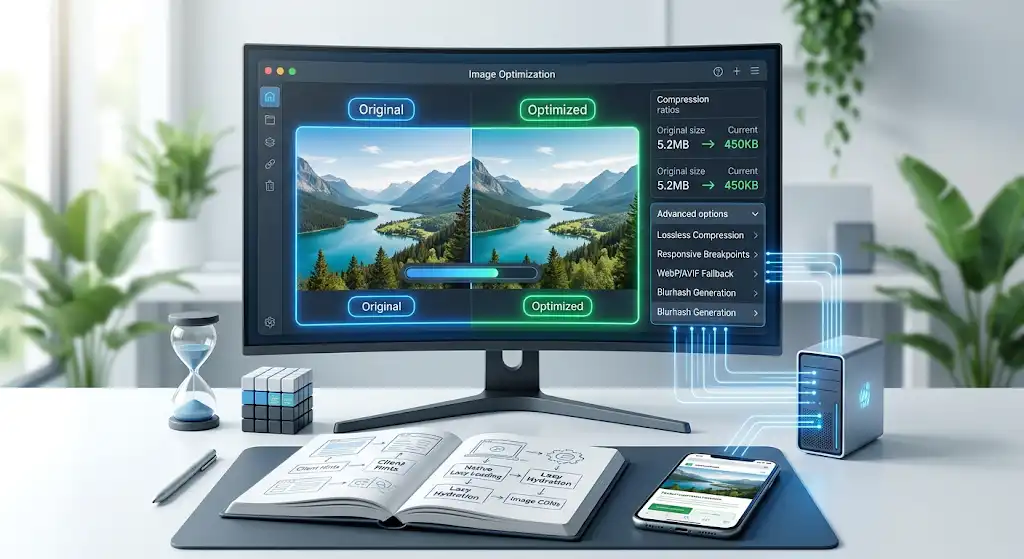
If you asked a frontend developer five years ago how to optimize images for the web, the answer was straightforward and universally accepted: "Compress your JPEGs and maybe look into serving this new format called WebP."
Today, serving next-generation formats like WebP and AVIF is the absolute bare minimum. While these modern formats offer incredible compression algorithms that shrink file sizes by up to 50% without visible quality loss, simply swapping out file extensions will not magically fix your Google Web Vitals scores.
Why? Because the primary bottleneck in modern web performance is rarely just the file size anymore. The real challenges lie in how the browser discovers, prioritizes, and decodes those image files on the main thread. A tiny 20KB AVIF image can still completely ruin your Largest Contentful Paint (LCP) metric if the browser doesn't know it needs to download it immediately.
In this comprehensive guide, we are diving deep into modern image optimization. We will look beyond simple file format conversions and explore the advanced architectural strategies and native HTML attributes required to deliver lightning-fast, visually stable web experiences in 2026.
1. The Art Direction Problem: Using the <picture> Element
Serving responsive images isn't just about taking a single, giant high-resolution photograph and resizing it using CSS (max-width: 100%). Sending a 2400px wide image to a mobile device operating on a 3G network is a massive waste of bandwidth, battery life, and processing power.
While the srcset attribute on a standard <img> tag is fantastic for resolution switching (letting the browser pick the right size of the exact same image based on screen density), it utterly fails when you need true art direction.
Art direction involves cropping or completely changing the image composition based on the user's viewport. A wide landscape hero image looks terrible when squished onto a narrow mobile screen; the focal point gets lost. You need a tightly cropped portrait version instead.
To solve this performantly, you must utilize the HTML5 <picture> element.
<picture>
  <source media="(max-width: 767px)" srcset="/img/hero-portrait.avif" type="image/avif">
  <source media="(max-width: 767px)" srcset="/img/hero-portrait.webp" type="image/webp">

  <source media="(min-width: 768px)" srcset="/img/hero-landscape.avif" type="image/avif">
  <source media="(min-width: 768px)" srcset="/img/hero-landscape.webp" type="image/webp">

  <img src="/img/hero-landscape.jpg" alt="A beautiful mountain landscape at dawn" width="1200" height="600">
</picture>
This ensures the browser only downloads the exact pixels it needs for the current layout, saving massive amounts of bandwidth. Using proper semantic tags like <picture> and <source> is a core principle in avoiding common HTML pitfalls, ensuring both performance and accessibility.
2. Resource Hinting: Unlocking fetchpriority="high"
By default, modern browsers feature a "Preload Scanner" that is remarkably good at guessing which resources to download first. However, browsers aren't mind readers. When a browser parses your HTML document, it might prioritize a heavy JavaScript bundle or a web font over your crucial LCP hero image.
We can manually intervene and guide the browser's network queue using the fetchpriority attribute.
If you have an image that is guaranteed to be the Largest Contentful Paint (LCP) element—usually the massive hero image at the top of your homepage or the main product photo on an e-commerce page—you must explicitly tell the browser to treat it as a top priority.
<img
  src="/hero-image.avif"
  alt="Main Product Showcase"
  width="800"
  height="600"
  fetchpriority="high"
>
Adding fetchpriority="high" boosts the image's request priority in the browser's internal network queue. This single attribute can often shave hundreds of milliseconds off your LCP time.
Conversely, you can use fetchpriority="low" for images lower down the page, ensuring they don't steal valuable bandwidth from render-blocking resources like your critical CSS files.
3. Unblocking the Main Thread: decoding="async"
Downloading an image over the network is only half the battle. Once the raw file is on the user's device, the browser has to decompress and decode that image data into actual pixels that can be painted onto the screen.
Image decoding is a surprisingly CPU-intensive mathematical task. Historically, browsers performed this decoding synchronously on the main thread. If you had a page with several large images, the decoding process could completely freeze the browser for a few milliseconds, causing visual "jank" and severely hurting your Interaction to Next Paint (INP) score.
Modern HTML offers a brilliant, native fix for this: the decoding attribute.
<img
  src="/heavy-infographic.avif"
  alt="Detailed financial infographic for 2026"
  width="1000"
  height="1000"
  decoding="async"
  loading="lazy"
>
By setting decoding="async", you instruct the browser to decode the image data in the background, off the main thread. This ensures that while the complex image is being processed, the user can still scroll down, click buttons, and interact with the site without experiencing a frozen screen. Understanding this pipeline is vital when learning exactly how browsers render a web page.
(Note: decoding="async" is different from loading="lazy". Lazy loading delays the network download until the image is near the viewport; async decoding moves the processing of the downloaded image off the main thread.)
4. The CSS Background Image Trap
A very common pattern in web development is using CSS background-image alongside background-size: cover to create full-width hero sections with text overlaid on top.
From a performance perspective, this is a terrible idea for LCP elements.
Browsers discover standard HTML <img> tags almost instantly through the Preload Scanner we mentioned earlier. But CSS background images are deeply hidden. The browser must first download the HTML, then download the CSS file, parse the CSS, build the CSS Object Model (CSSOM), construct the Render Tree, and then calculate if the element is actually visible on the screen before it even requests the background image from the server.
This lengthy chain of dependencies causes a massive, unavoidable delay in your Largest Contentful Paint.
The Fix: Always use standard HTML <img> tags for critical, content-bearing images at the top of your page. You can easily mimic the behavior of background-size: cover using modern CSS.
.hero-container {
  position: relative;
  width: 100%;
  height: 100vh;
  overflow: hidden;
}

.hero-image {
  width: 100%;
  height: 100%;
  object-fit: cover; /* Acts just like background-size: cover */
  position: absolute;
  top: 0;
  left: 0;
  z-index: -1;
}
5. Next-Gen Placeholder Generation (LQIP)
Even with perfectly optimized images and high-priority fetching, users on slow 3G mobile connections will inevitably experience loading delays. Staring at a blank white space or a broken layout is jarring and drastically increases bounce rates.
To create a premium, perceived user experience, you must implement Low-Quality Image Placeholders (LQIP). Instead of showing nothing while the 100KB image loads, you immediately show a tiny, heavily blurred version of the image that loads instantly. This blurred version then transitions smoothly to the high-resolution version once it's ready.
Techniques for this include:
- Base64 BlurHashes: Generating a tiny (under 1KB) string of encoded data that mathematically renders a CSS gradient matching the image's dominant colors.
- SVG Tracing: Generating an ultra-lightweight SVG outline or silhouette of the image.
If you are using modern meta-frameworks, this complex logic is often handled for you seamlessly. For instance, our guide on optimizing Next.js fonts and images details how the next/image component provides an out-of-the-box placeholder="blur" property that automatically manages this generation, significantly improving perceived performance with almost zero effort.
Conclusion
Converting your static assets to AVIF or WebP is a fantastic first step, but it is no longer the finish line for frontend performance in 2026.
Modern image optimization is a holistic architectural challenge. It requires you to consider the user's viewport context (using <picture> for art direction), the browser's internal network queue (using fetchpriority), the main thread's CPU usage (using decoding="async"), and the psychological aspect of perceived loading time (using LQIP placeholders).
By moving beyond simple file format conversions and deliberately implementing these advanced HTML attributes and loading strategies, you guarantee a faster, smoother, and far more resilient experience for your users—no matter what device they are holding or what network connection they are battling.