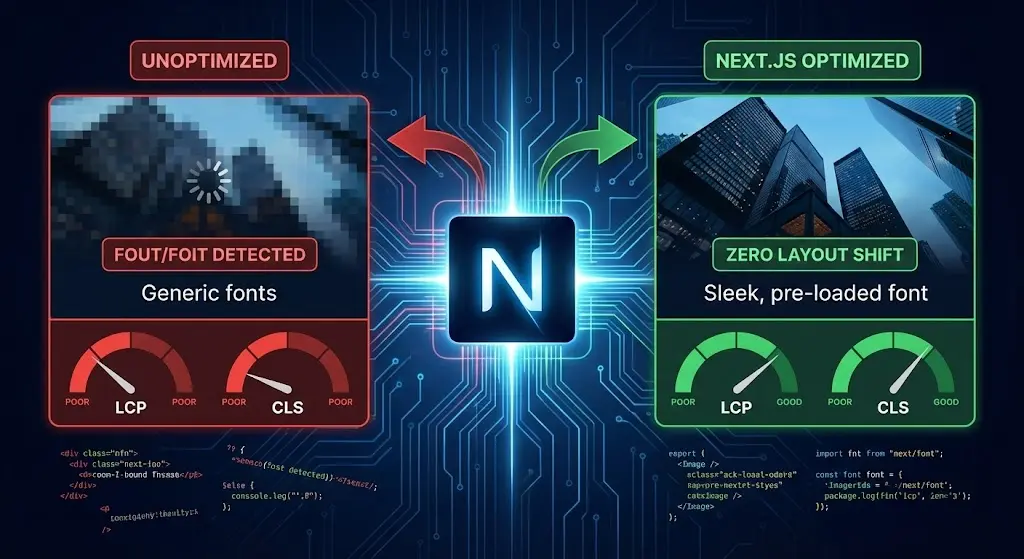
Core Web Vitals aren't just vanity metrics; they are Google's way of measuring user experience. A poor Largest Contentful Paint (LCP) or a high Cumulative Layout Shift (CLS) translates directly to frustrated users and lower search rankings.
The two biggest culprits? Fonts and Images.
Fonts cause "flashes of invisible text" (FOIT) or "flashes of unstyled text" (FOUT), making your site feel jerky. Unoptimized images are massive bandwidth hogs that push your LCP score into the red zone.
Next.js offers two powerful tools to solve these problems automatically: next/font and next/image. But simply using them isn't enough; you need to use them correctly.
This guide is a deep dive into optimizing your assets. We'll explore how to host Google Fonts locally with zero effort, how to prevent layout shifts with image sizing, and how these strategies directly improve your Google Web Vitals 3.0 scores.
1. Mastering next/font: Zero-Layout-Shift Typography
The old way of using Google Fonts was to add a <link> tag to your document head. This forced the browser to make a network request to Google's servers before it could render text, leading to delays and layout shifts.
next/font changes the game by hosting the font files locally.
How it Works
When you use next/font/google, Next.js downloads the font file at build time and serves it from your own domain. No external requests. No privacy issues. Instant loading.
Implementing Google Fonts
Here is the correct way to set up a variable font (Inter) in your layout.
// app/layout.tsx
import { Inter } from 'next/font/google';

// 1. Configure the font
const inter = Inter({
  subsets: ['latin'],
  display: 'swap',
  variable: '--font-inter', // Define a CSS variable
});

export default function RootLayout({ children }: { children: React.ReactNode }) {
  return (
    <html lang='en' className={inter.variable}>
      <body className='font-sans'>{children}</body>
    </html>
  );
}
By using the variable option, you can integrate it seamlessly with Tailwind CSS.
// tailwind.config.js
module.exports = {
  theme: {
    extend: {
      fontFamily: {
        sans: ['var(--font-inter)'], // Use the CSS variable
      },
    },
  },
};
This ensures your text renders immediately with the correct font, eliminating CLS caused by font swapping.
2. Mastering next/image: The LCP Booster
Images are usually the Largest Contentful Paint (LCP) element on a page. If they load slowly, your score tanks. The standard <img> tag is dumb; it loads whatever source you give it, regardless of the user's device size.
next/image is smart. It automatically:
- Resizes images for different device viewports.
- Converts formats to modern standards like WebP or AVIF.
- Lazy loads images that are off-screen.
The "Fill" vs. "Fixed" Dilemma
The most confusing part of next/image is the sizing props.
Scenario A: You know the size (e.g., an avatar).
Use width and height. This reserves the space in the DOM immediately, preventing layout shifts.
<Image src='/me.jpg' alt='Profile' width={100} height={100} className='rounded-full' />
Scenario B: You don't know the size (e.g., a responsive hero image).
Use the fill prop. This makes the image expand to fill its parent container. Crucial: The parent container must have position: relative.
<div className='relative h-96 w-full'>
  <Image
    src='/hero.jpg'
    alt='Hero Image'
    fill
    style={{ objectFit: 'cover' }}
    priority // IMPORTANT for LCP!
  />
</div>
The priority Prop:
If an image is "above the fold" (visible without scrolling), you must add the priority prop. This tells the browser to preload the image, drastically improving your LCP score. Without it, the browser waits until it parses the <img> tag to start downloading.
3. Remote Images: Avoiding the Optimization Trap
When using images from an external CMS like Headless WordPress, you need to configure next.config.js to allow optimization.
If you don't do this, Next.js might treat them as unoptimized, or worse, throw an error.
// next.config.js
module.exports = {
  images: {
    remotePatterns: [
      {
        protocol: 'https',
        hostname: 'my-wordpress-site.com',
      },
    ],
  },
};
This enables the Next.js server to fetch, resize, and cache the external image, serving an optimized version to your user.
Conclusion
Optimizing assets isn't about manual compression tools or writing complex media queries anymore. It's about leveraging the framework's built-in capabilities.
By switching to next/font, you eliminate external requests and font-based layout shifts. By using next/image correctly—especially the sizes and priority props—you ensure your visuals load instantly on any device.
These two changes are often all it takes to turn a failing Core Web Vitals report into a passing one. They are the low-hanging fruit of the Critical Rendering Path.